
The Brother ScanNCut is a game-changer for crafters, offering endless opportunities to create custom projects with precision and ease. By using digital cut files, you can expand your creative options beyond the built-in patterns, bringing unique designs to life with your ScanNCut machine. This guide will walk you through how to use digital files, like the ones from Novae Makers Mart, with CanvasWorkspace to make the most of your crafting experience.
At Novae Makers Mart, we specialize in high-quality SVG designs that are easy to use and designed to inspire creativity. This guide will walk you through each step, from unzipping your files to uploading them into CanvasWorkspace and cutting them with your ScanNCut machine. By the end, you’ll have all the tools and knowledge needed to bring your creative ideas to life.
Why Use SVG Files with Brother ScanNCut?
SVG files are ideal for creating clean, precise cuts on a wide range of materials. Unlike raster files like PNGs or JPGs, which can lose quality when resized, SVGs remain sharp and scalable. Here’s why they’re perfect for your Brother ScanNCut projects:
- Precision Cutting: SVG files provide sharp, clean lines, ensuring your designs are cut exactly as intended, even with intricate details.
- Flexibility: These files are compatible with multiple cutting programs, including Brother CanvasWorkspace, making them versatile for various crafting needs.
- Layered Designs: Many SVGs are pre-layered, enabling you to create multi-colored or textured projects effortlessly.
- Easy Editing: Adjust your designs directly in CanvasWorkspace without worrying about distortion. Resize, rearrange, or customize elements to suit your project perfectly.

Preparing Your Files: Locating and Unzipping Your Downloaded Files
Before you can upload any files into CanvasWorkspace, you’ll first need to locate and unzip your downloaded files. If you’ve recently purchased a digital design from Novae Makers Mart, chances are it arrived as a ZIP folder—a convenient way to deliver multiple file types in a single download.
ZIP folders bundle all the necessary files together, including formats like SVG, PNG, PDF, and DXF, ensuring compatibility with a wide range of crafting machines and software. This not only keeps your download organized but also makes it easy to find the right file for your project.
How to Unzip Files by Device
To access the files inside a ZIP folder, you’ll need to unzip them. On most devices, it’s as simple as double-clicking the folder or right-clicking and selecting “Open.” For more detailed instructions, see the steps below for different devices.
- Mac: Locate the zip in your downloads folder. Double-click the ZIP folder to automatically extract its contents into a new folder. Note: If you can’t open the .zip file, make sure you have enough space on your Mac for the unzipped item.
- Windows: To unzip all contents of a ZIP folder, press and hold (or right-click) the folder, select Extract All…, and follow the prompts. To extract a single file or folder, open the ZIP folder and drag the desired item to a new location.
- iPhone/iPad: Open the Files app and locate the ZIP folder. Tap the file to create a new folder containing the extracted files.
- Android/Google Devices: Open the Files by Google app and select the ZIP file. A pop-up will display its contents. Tap Extract to preview the files. To delete the ZIP file after extraction, check the Delete ZIP file option, then tap Done. Extracted files are saved in the same folder as the original ZIP file.
Using CanvasWorkspace to Upload SVG Files
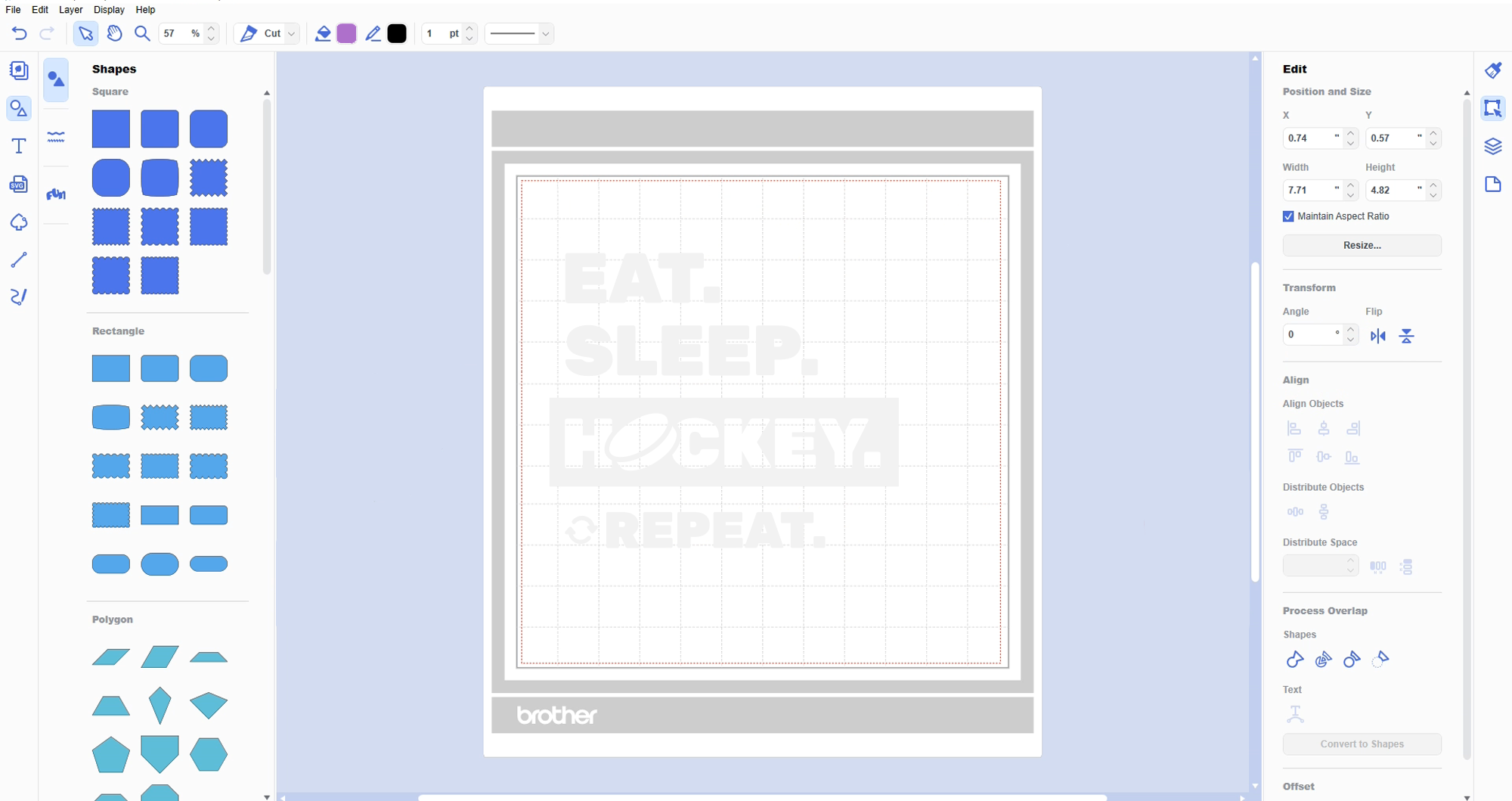
CanvasWorkspace is Brother’s companion software for the ScanNCut machine. It converts SVG files into FCM (File Cutting Machine) format, which the machine can read. There are two versions of CanvasWorkspace: an online version accessible through a web browser and a desktop software version.
Importing SVG Files to CanvasWorkspace Online
- Log In: Visit CanvasWorkspace and log in with your Brother account.
- Start a New Project: Click New Project to open a blank Canvas.
- Import the SVG File:
- Click the Import icon in the top menu.
- Navigate to the folder where your SVG file is saved, select it, and click Open.
- The design will appear on your Canvas.
- Group Your Design: If your SVG has multiple parts, group them to keep the design intact. Right-click on the elements, then choose Group or press G on your keyboard.
- Download the FCM File:
- Download to PC: Save the file and transfer it via USB.
- ScanNCut Transfer: Send the file wirelessly to your machine.
Importing SVG Files to CanvasWorkspace Desktop
- Open CanvasWorkspace: Launch the desktop software and open a blank Canvas.
- Upload Your File:
- Click the Import icon in the left toolbar.
- Navigate to your SVG file, select it, and click Open.
- The design will appear on your Canvas.
- Prepare the Design for Cutting: Group any parts that should stay together and resize if necessary.
- Save as FCM:
- File > Export FCM File: Save the design to your computer or USB.
- File > Transfer FCM File via Internet: Send it directly to your machine.


Cutting Your Design with Brother ScanNCut
Once your file is saved in FCM format, it’s time to cut:
- Prepare Your Mat: Secure your material onto the cutting mat, ensuring it’s flat and properly aligned. For delicate materials like vinyl, use a brayer to smooth out wrinkles.
- Insert the File: Load your USB drive into the ScanNCut machine or ensure your machine is connected via wireless transfer.
- Preview Your Design: Select the FCM file and review the design on the machine’s display. Make any final adjustments if needed.
- Adjust Blade Settings: Set the blade depth and pressure based on the material you’re cutting. Use a test cut to confirm the settings.
- Cut Your Design: Once everything is ready, press Start to begin cutting!
Tips for a Smooth Cutting Experience
To get the most out of your SVG files and ScanNCut machine:
- Label Your Files: Save your SVGs with descriptive names and tags for easy access.
- Test Cut First: Always test your settings on a small area of material to avoid errors.
- Maintain Your Mat and Blade: Clean your mat regularly to keep it sticky and ensure your blade is sharp for precise cuts.
- Use High-Quality Designs: Choose well-made SVGs from trusted sources like Novae Makers Mart to avoid unnecessary troubleshooting.
- Explore New Materials: Experiment with specialty papers, adhesive vinyl, or heat-transfer vinyl to expand your project options.
Troubleshooting Common Issues
Even with proper preparation, occasional issues can arise. Here’s how to fix them:
- SVG File Won’t Upload: Ensure you’ve selected the correct file type and are using the latest version of CanvasWorkspace.
- Parts of the Design Are Missing: Group all elements in CanvasWorkspace before saving to FCM.
- Material Won’t Cut Cleanly: Check your blade depth, pressure settings, and mat condition. Recalibrate your machine if needed.
Let’s Get Crafting!
Using SVG files with Brother ScanNCut machines opens up endless possibilities for your crafting projects. With high-quality designs from Novae Makers Mart, you’ll enjoy precision cutting, versatile designs, and seamless compatibility with CanvasWorkspace.
Explore our shop for a wide range of thoughtfully designed templates, each created to make your crafting experience enjoyable and rewarding. Whether you’re working on a special gift, seasonal decor, or a creative passion project, we’re here to help you elevate your craft and create something amazing.