

Silhouette Studio opens up endless creative possibilities, especially with the ability to import and cut SVG files. At Novae Makers Mart, we specialize in providing high-quality SVG templates designed to work seamlessly with your Silhouette Cameo. If you’re new to using Silhouette Studio or need a refresher, this guide will walk you through each step, from unzipping your files to uploading and cutting your designs.
One of the first things to know about Silhouette Studio is that importing SVG files requires the Designer Edition or higher. The Basic Edition only supports DXF files, which are also included with most Novae Makers Mart designs. If you’re unsure which version you have, you can check in the “Help” menu under “About Silhouette Studio.”
If you’re using the Basic Edition of Silhouette Studio, you can still upload designs by selecting the DXF file instead of the SVG file. However, keep in mind that DXF files are less optimized than SVG files and may take longer to process. When imported, DXF files appear as outlines only, with no fill colors, layers, or compound paths—what you’ll see is a simple outline of your design.
Why Use SVG Files in Silhouette Studio?
SVG files, or scalable vector graphics, are a favorite among crafters for a reason. Unlike raster images (like JPG or PNG), SVG files are made up of paths that can be scaled infinitely without losing quality. This makes them ideal for creating sharp, clean cuts with your Silhouette Cameo
With SVG files from Novae Makers Mart, you’ll also enjoy:
- Precision Cutting: Every detail of your design is preserved, no matter how intricate.
- Layered Designs: Many SVG files are designed with layers, making it easy to work with multiple colors or elements in a single project.
- Editable Features: You can resize, rearrange, and adjust SVG files directly in Silhouette Studio without affecting the quality of the design.

Preparing Your Files: Locating and Unzipping Your Downloaded Files
Before you can upload any files into Silhouette Studio, you’ll first need to locate and unzip your downloaded files. If you’ve recently purchased a digital design from Novae Makers Mart, chances are it arrived as a ZIP folder—a convenient way to deliver multiple file types in a single download.
ZIP folders bundle all the necessary files together, including formats like SVG, PNG, PDF, and DXF, ensuring compatibility with a wide range of crafting machines and software. This not only keeps your download organized but also makes it easy to find the right file for your project.
How to Unzip Files by Device
To access the files inside a ZIP folder, you’ll need to unzip them. On most devices, it’s as simple as double-clicking the folder or right-clicking and selecting “Open.” For more detailed instructions, see the steps below for different devices.
- Mac: Locate the zip in your downloads folder. Double-click the ZIP folder to automatically extract its contents into a new folder. Note: If you can’t open the .zip file, make sure you have enough space on your Mac for the unzipped item.
- Windows: To unzip all contents of a ZIP folder, press and hold (or right-click) the folder, select Extract All…, and follow the prompts. To extract a single file or folder, open the ZIP folder and drag the desired item to a new location.
- iPhone/iPad: Open the Files app and locate the ZIP folder. Tap the file to create a new folder containing the extracted files.
- Android/Google Devices: Open the Files by Google app and select the ZIP file. A pop-up will display its contents. Tap Extract to preview the files. To delete the ZIP file after extraction, check the Delete ZIP file option, then tap Done. Extracted files are saved in the same folder as the original ZIP file.
Uploading SVG Files to Silhouette Studio
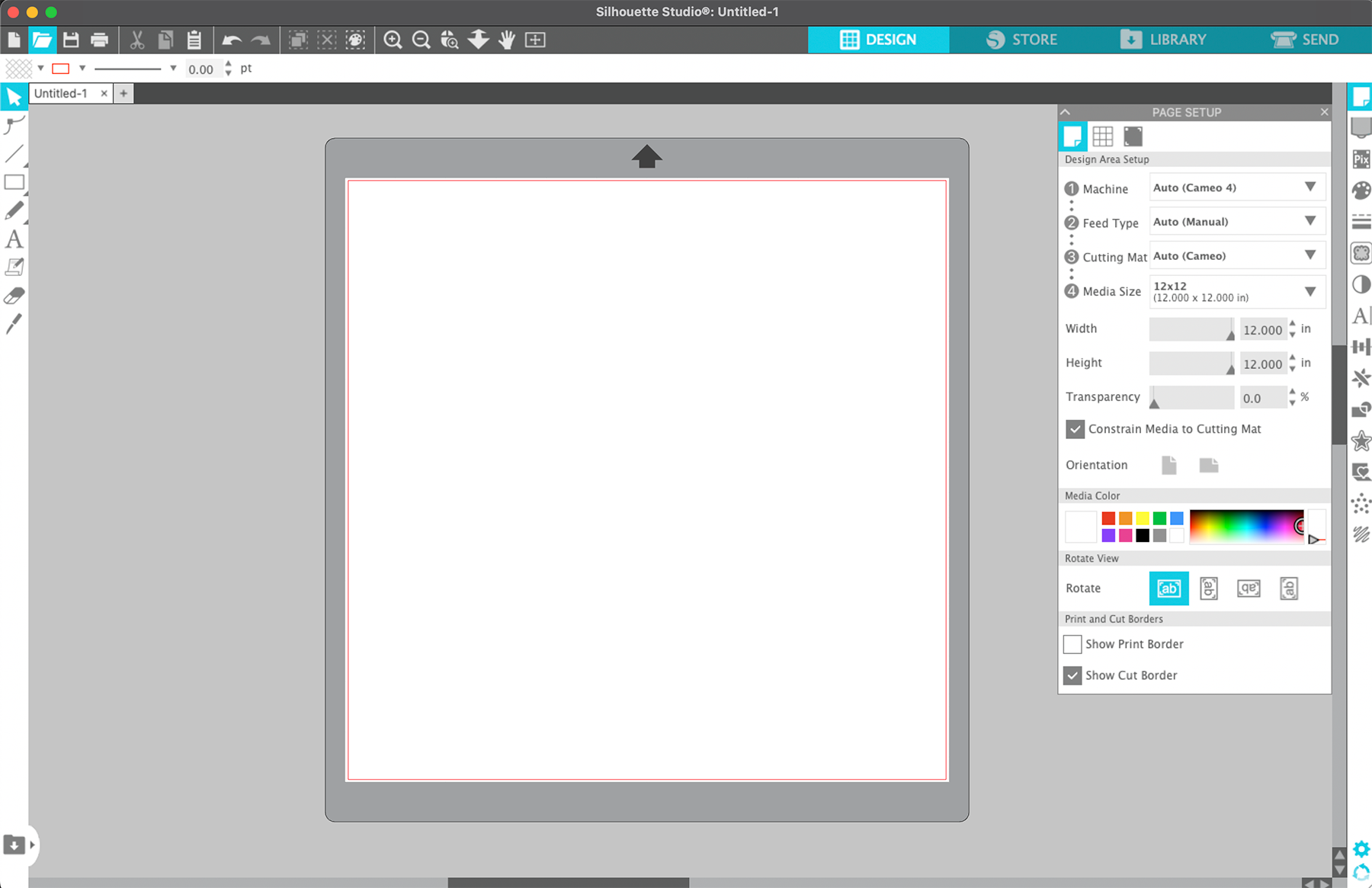
Once your files are unzipped and ready, here’s how to upload them to Silhouette Studio. Whether you’re adding them directly to your mat or importing them into your library, the process is simple:
Option 1: Open Files Directly Onto Your Mat
- Open Silhouette Studio and click File > Open, or use the shortcut CMD+O (Mac) or CTRL+O (PC).
- Navigate to the folder where you saved your SVG file. If the file doesn’t appear, check to ensure “All Files” is selected in the file browser. Some SVG files may mistakenly display as “Chrome HTML documents” depending on your computer settings.
- Select the SVG file and click Open. The design will appear on your mat, ready to edit or cut.
Option 2: Import Files Into Your Silhouette Library
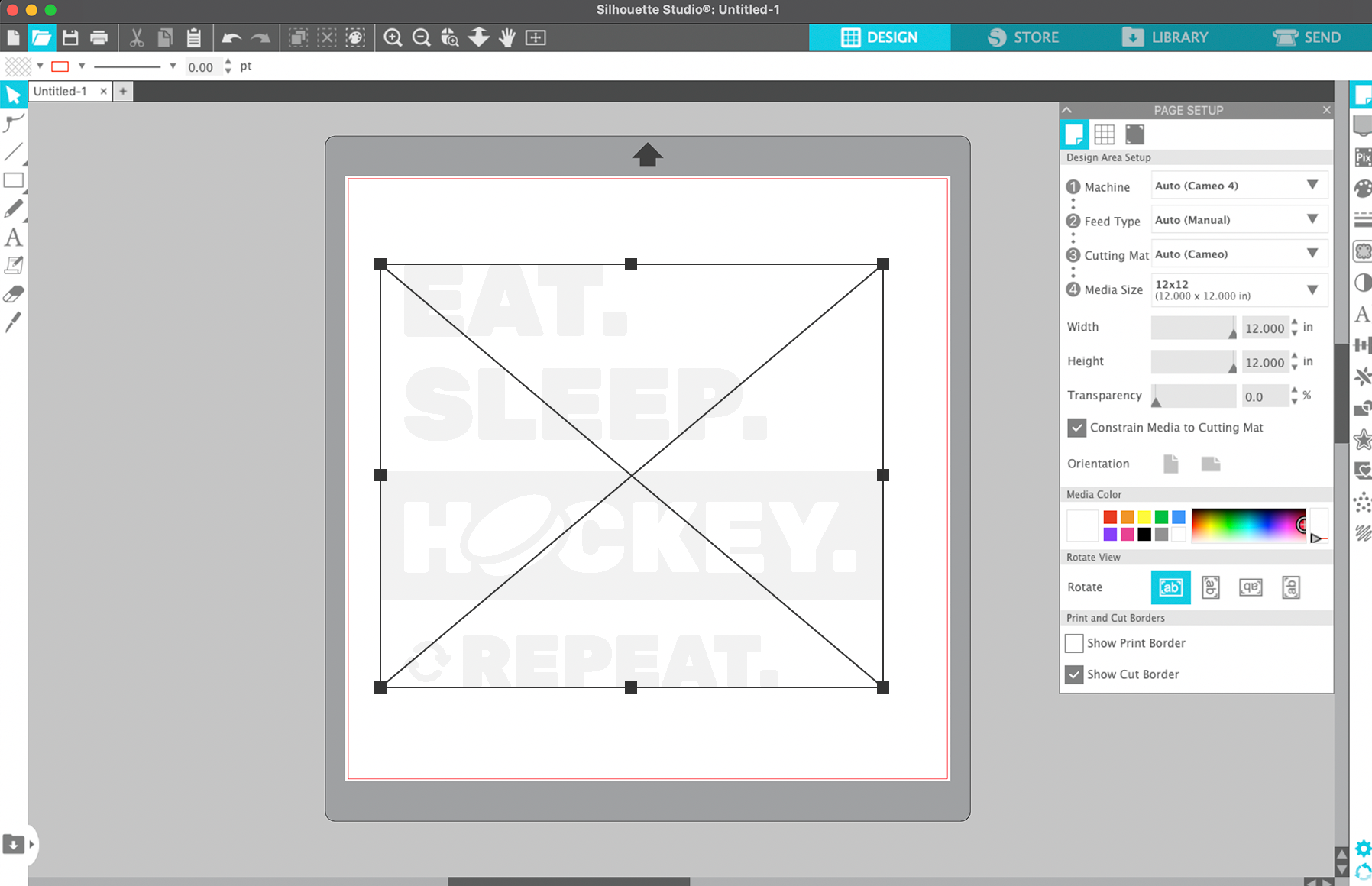
- Open Silhouette Studio and click File > Library > Import to Library.
- Navigate to the folder where you saved your unzipped SVG file. Select the file and click OK.
- The design will be saved in your User Designs folder in the library. To use it, double-click the design to add it to your mat.
Adjusting and Cutting Your Design
After importing your SVG file, you might notice that the cut lines aren’t visible. This is normal for SVG files in Silhouette Studio and doesn’t mean the file is faulty. Follow these steps to activate the cut lines and prepare your design:
- Resize if Needed: If the design isn’t the right size for your project, use the corner handles to adjust it. Hold the Shift key while resizing to maintain proportions.
- Activate Cut Lines: Click the Send tab in the top right corner of Silhouette Studio. Select your design, then choose Cut to activate the cut lines.
- Set Your Cutting Preferences: Choose your material and adjust the cut settings accordingly. Silhouette Studio will guide you with recommended settings based on the material you select.
Tip: You should never need to trace an SVG file. Tracing is only necessary for raster images like PNG or JPG files.


Tips for Using SVG Files in Silhouette Studio
- Organize Your Files: Save your SVG files in a dedicated folder to keep them organized and easy to find. Avoid leaving them in your Downloads folder, as this can lead to confusion later.
- Use Compatible Software Versions: Ensure you’re using the Designer Edition or higher to access all the features needed for SVG files.
- Respect Copyright and Ownership: Always ensure you have the rights or permission to use the designs you upload. Stick to designs you’ve created or purchased from trusted sellers, like Novae Makers Mart, to avoid intellectual property issues.
Troubleshooting Common Issues
If you encounter problems while uploading or cutting your files, here are a few solutions:
- SVG Files Not Visible: If the SVG file doesn’t appear in your file browser, ensure “All Files” is selected in the file type dropdown.
- Cut Lines Not Showing: Go to the Send tab and ensure the design is selected with the cut option enabled.
- DXF Files Lagging: If you’re using a DXF file with the Basic Edition, expect slower processing times compared to SVG files.
- Overlapping Cuts: If your design has overlapping elements, ensure they’re properly grouped or welded in Silhouette Studio to avoid double cuts.
- Material Not Cutting Through: Double-check your blade settings, material type, and mat alignment. Recalibrate your blade if necessary.
- Error Messages During Upload: Restart Silhouette Studio and ensure your software is up to date. SVG files are best supported in the latest versions of Designer Edition or higher.
Let’s Get Crafting!
Uploading and cutting SVG files in Silhouette Studio is easier than you think! With a little preparation and the right tools, you can bring your creative ideas to life in no time. Whether you’re working with Novae Makers Mart designs or your custom creations, this guide ensures a seamless experience from start to finish.
Explore our shop for a wide range of thoughtfully designed templates, each created to make your crafting experience enjoyable and rewarding. Whether you’re working on a special gift, seasonal decor, or a creative passion project, we’re here to help you elevate your craft and create something amazing.