
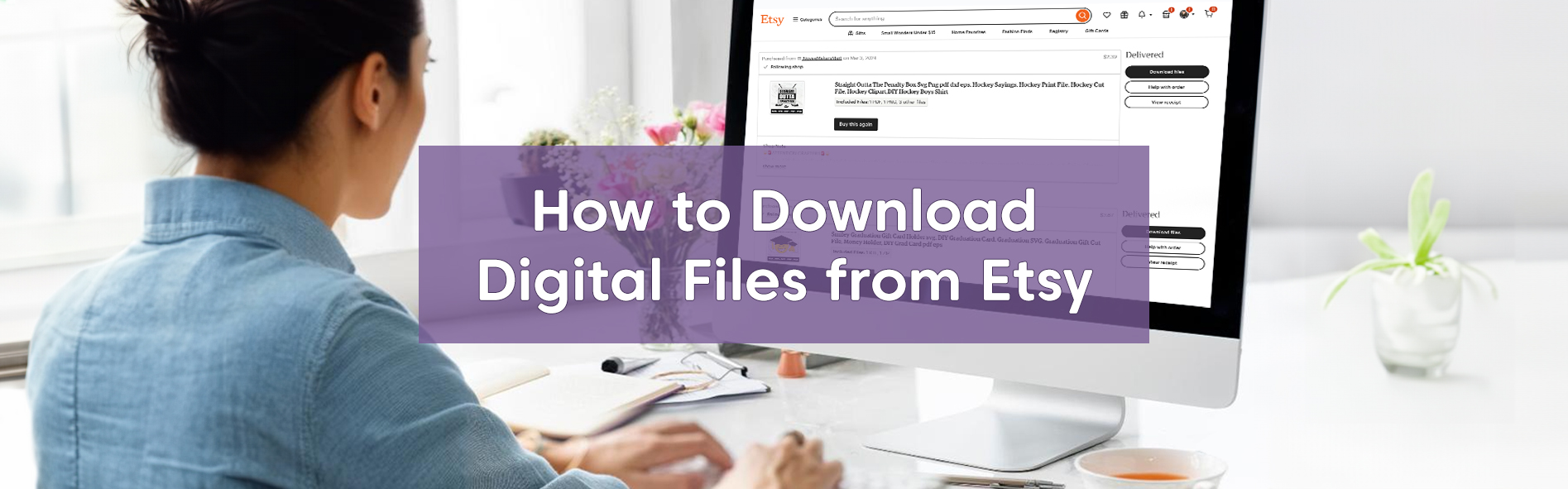
Purchasing digital files on Etsy is a quick, hassle-free way to kick-start your next crafting adventure. At Novae Makers Mart, we specialize in premium templates for paper and laser cutting machines, helping you create stunning, polished projects with ease.
While digital downloads provide a convenient way to access crafting designs, the steps involved—from downloading files to getting them ready for use—can sometimes feel overwhelming. That’s where this guide comes in! We’ll walk you through every step, tackle common troubleshooting tips, and share insider insight to help you make the most of your digital templates.
Ready to dive in? Let’s get started!


Downloading Digital Files from Etsy
Prefer a quick walkthrough? Watch this short video that explains everything covered below.
Downloading digital files from Etsy is fast and convenient once your payment is confirmed. But what exactly is an “instant download”? These are ready-made files available immediately after your payment clears. Most payments process quickly, but if you’re using PayPal or a credit card, there may be a brief delay of a few minutes before the download link becomes accessible.
Once your payment clears, you can access your files through your Etsy account using a web browser like Chrome or Safari, or by clicking the “Download” button in the email sent by Etsy’s system. Below are detailed steps for each option to help you get started.
Log Into Etsy:
- Sign in to Etsy.com on your computer or mobile browser (e.g., Chrome or Safari). Note: Downloads are not supported on the Etsy app at this time.
- Navigate to Your Account > Purchases and Reviews, typically located at the top of the page.
- Locate your order and click Download Files to open the Downloads page. Here, you’ll find all files attached to your order. If you purchased multiple projects, scroll down to access each one.
OR
Check Your Email
- For instant downloads, you’ll also find download links in your email receipt. If you can’t locate this email, please make sure to check your spam or junk folder.
- Adding transaction@etsy.com to your address book can prevent future emails from being filtered out.
- Etsy doesn’t give sellers the ability to send or re-send the download emails, so if you’re unable to locate it I would recommend logging in to a web browser and following the steps above to ensure easy download.
Troubleshooting Common Issues
Download Link is Gray: If your payment is still processing, the download option will be unavailable until payment clears.
Guest Purchases: If you checked out without an Etsy account, download links will be sent to the email you provided during checkout.
File Corruption or Browser Problems: If a file won’t open or appears corrupted, re-download it from your account. Make sure the download completes fully before opening the file. If issues persist, I’m here to help—feel free to reach out for troubleshooting assistance!

Locating and Unzipping Your Downloaded Files
After completing your purchase and downloading your files, you’ll typically find them in your device’s Downloads folder or wherever you’ve chosen to save files. At Novae Makers Mart, many of our products download as ZIP folders. This format ensures you receive all the necessary files bundled together in a single, efficient download.
ZIP folders are essentially compressed packages that streamline the downloading process, making it easier to handle multiple files at once. For instance, a single ZIP folder might include SVG, PDF, or DXF formats to suit different crafting machines and software. This method not only keeps your files organized but also ensures you have everything you need for your project in one place.
We use ZIP folders because Etsy limits the number of individual files we can upload to a listing. By compressing the files into a ZIP folder, we can offer a variety of options tailored to different crafting needs without sacrificing convenience. Whether you’re using a paper cutting machine or a laser cutter, ZIP folders help us provide the versatility and organization you need for a smooth crafting experience.
How to Unzip Files by Device
To access the files inside a ZIP folder, you’ll need to unzip them. On most devices, it’s as simple as double-clicking the folder or right-clicking and selecting “Open.” For more detailed instructions, see the steps below for different devices.
- Mac: Locate the zip in your downloads folder. Double-click the ZIP folder to automatically extract its contents into a new folder. Note: If you can’t open the .zip file, make sure you have enough space on your Mac for the unzipped item.
- Windows: To unzip all contents of a ZIP folder, press and hold (or right-click) the folder, select Extract All…, and follow the prompts. To extract a single file or folder, open the ZIP folder and drag the desired item to a new location.
- iPhone/iPad: Open the Files app and locate the ZIP folder. Tap the file to create a new folder containing the extracted files.
- Android/Google Devices: Open the Files by Google app and select the ZIP file. A pop-up will display its contents. Tap Extract to preview the files. To delete the ZIP file after extraction, check the Delete ZIP file option, then tap Done. Extracted files are saved in the same folder as the original ZIP file.

Understanding File Types Included in Your Download
When you unzip your download, you’ll discover several file types carefully curated to accommodate different crafting needs. Each format is designed to work seamlessly with popular crafting tools, ensuring you have everything you need for a smooth and successful project.
Here’s a breakdown of the most common file formats included in our downloads:
- SVG (Scalable Vector Graphics) files are essential for crafters using cutting machines like Cricut, Silhouette, or Brother ScanNCut. These layered files are fully editable, retain high-quality resolution, and are ideal for creating precise cuts or intricate designs.
- EPS (Encapsulated PostScript) files cater to advanced design software like Adobe Illustrator or CorelDRAW. Known for their scalability and editability, they’re perfect for more experienced users looking to customize designs or create professional-grade projects.
- PDF (Portable Document Format) files act as a secondary vector file, offering flexibility for users who need an alternative to SVG or EPS formats. These files are scalable and retain design quality, making them useful for certain cutting or crafting workflows that support PDF imports.
- PNG (Portable Network Graphics) files are ideal for printing or digital use. With their transparent background, they’re excellent for layering over other designs or incorporating into larger projects, such as custom cards or digital graphics.
- DXF (Drawing Exchange Format): files are a go-to option for older cutting machines or CAD software users. They ensure compatibility with a wide range of devices, making them a versatile choice for many crafters. Each of these file formats is included to maximize compatibility and provide flexibility across a variety of crafting tools and software. Whether you’re a beginner or an experienced maker, you’ll find the right file to bring your creative vision to life.


FAQs About Digital Files
What if I can’t open my files?
If you’re having trouble opening your files, double-check that you’ve followed the steps above to unzip and are using the right software to open the file type. For example, SVG files work best with vector software or cutting machines such as Cricut Design Space or Silhouette Studio. Make sure your software is up to date, as older versions may not support newer file formats. Still stuck? Let us know—we’re happy to help troubleshoot!
Can I redownload files in the future?
Absolutely! You can redownload your files anytime. Just log into your Etsy account, head to the Purchases and Reviews section, and find your order to access your downloads. It’s a great way to ensure you always have your files handy, even if you switch devices.
I downloaded the wrong file type. What should I do?
No worries! Most of our listings include multiple file types, so you should find one that works for your project. If you’re still having trouble finding the right one, send us a message—we’ll gladly guide you toward the best option for your needs.
Are refunds available for digital files?
Due to the nature of digital products, we generally can’t offer refunds. However, your satisfaction matters to us! If you encounter an issue or need assistance, please reach out—we’ll do our best to resolve any concerns and ensure you’re happy with your purchase.
Ready to Start Crafting?
Once you’ve downloaded and unzipped your files, the fun begins! You’re all set to start crafting and bring your creative projects to life.
Looking for more inspiration? Explore our shop for a wide range of thoughtfully designed templates, each created to make your crafting experience enjoyable and rewarding. Whether you’re working on a special gift, seasonal decor, or a creative passion project, we’re here to help you elevate your craft and create something amazing.